

Table of Contents
Introduction
Moving an ecommerce services to Shopify involves much more than transferring products from one platform to another. Customer records, historical orders, product variants, URLs, integrations, subscriptions, analytics, and search visibility must all be considered.
A poorly planned migration can result in missing data, broken links, inaccurate inventory, disrupted integrations, and declining organic traffic. A structured Shopify migration gives you an opportunity to improve your store’s performance, design, user experience, and ability to scale.
This guide explains how to migrate to Shopify, which information can be transferred, how Shopify compares with other ecommerce platforms, and what to check before launching your new store.
What Is Shopify Migration?
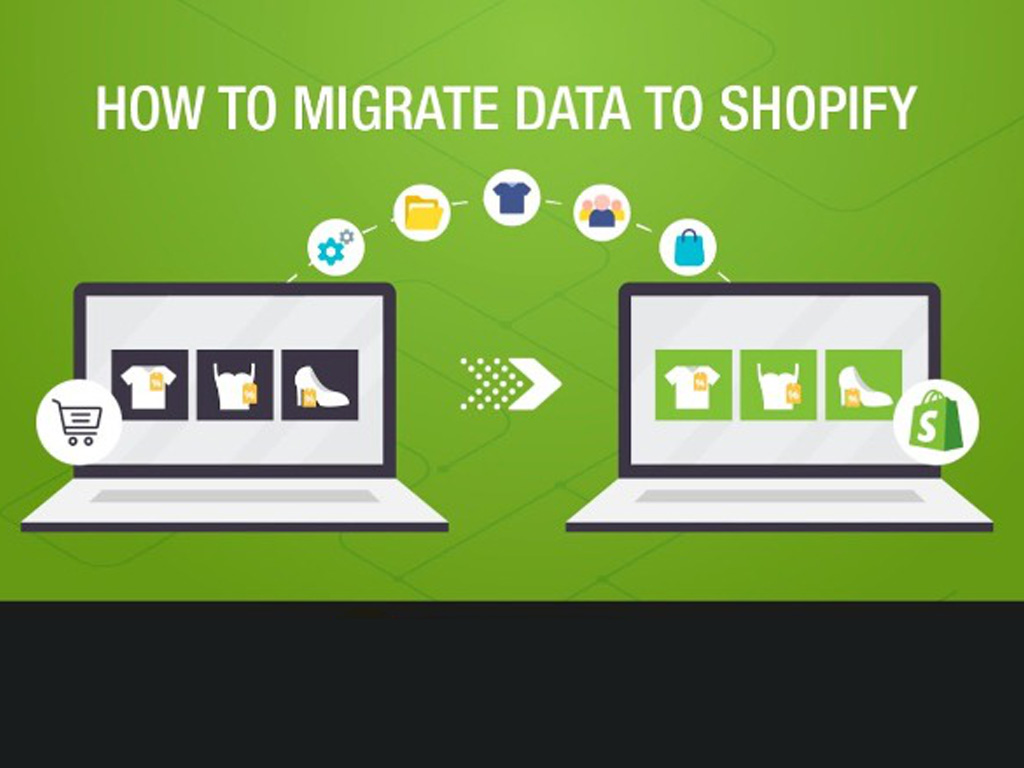
Shopify migration is the process of moving an ecommerce website from another platform to Shopify or Shopify Plus. The process may include transferring store data, rebuilding the design, replacing integrations, configuring business settings, preserving SEO value, and testing the new website before launch.
Businesses commonly migrate to Shopify from:
- Magento or Adobe
- Commerce
- WooCommerce
- BigCommerce
- Salesforce Commerce Cloud
- OpenCart
- PrestaShop
- Wix
- Squarespace
- Etsy
- Custom ecommerce platforms
Migration can be completed manually, through an automated migration application, with custom scripts and APIs, or with help from an experienced Shopify development company.
Why Do Businesses Migrate to Shopify?
Businesses often consider Shopify when their existing ecommerce platform becomes difficult or expensive to maintain. A migration may also be prompted by performance limitations, security concerns, complicated content management, or the need for better integrations.
Common reasons for moving to Shopify include:
Easier Store Management
Shopify provides a centralized dashboard for managing products, orders, customers, promotions, content, and reports. This can reduce the technical effort required for routine store operations.
Managed Hosting and Security
Shopify manages platform hosting, security updates, and core infrastructure. Businesses do not need to maintain separate hosting environments or manually install platform security patches.
Access to Ecommerce Integrations
Shopify’s application ecosystem supports email marketing, fulfillment, reviews, subscriptions, accounting, customer service, analytics, and other business functions.
Greater Scalability
Shopify can support businesses at different stages of growth. Companies with more complex requirements may consider Shopify Plus for expanded automation, B2B commerce, customization, and organizational capabilities.
Improved Mobile Shopping
Shopify themes are built around responsive ecommerce experiences. A carefully designed and optimized store can provide faster, simpler shopping across mobile and desktop devices.
What Data Can Be Migrated to Shopify?
The information that can be transferred depends on the source platform, Shopify plan, migration method, and structure of the existing data.
A Shopify migration may include:
- Products, descriptions, SKUs, prices, and inventory
- Product images, videos, and downloadable files
- Product variants, options, categories, and collections
- Customer names, email addresses, tags, and addresses
- Historical order records and order statuses
- Pages, blog posts,
- FAQs and policy content
- Navigation menus and collection structures
- Meta titles and meta descriptions
Not every data type can be transferred directly. Customer passwords, some encrypted payment information, proprietary app data, and platform-specific functionality may need to be recreated or handled through a specialized process.
How to Migrate an Ecommerce Store to Shopify
Follow these Shopify migration steps to transfer your data, preserve SEO services, and launch with minimal disruption.
Step 1: Audit Your Existing Store
Document your products, customers, orders, content, URLs, apps, integrations, analytics, payment rules, and custom features. Decide what should be migrated, rebuilt, consolidated, archived, or removed.
Step 2: Define the Migration Scope
Group your store data into four categories:
- Migrate as is
- Clean before migrating
- Rebuild in Shopify
- Archive or remove
Set the timeline, responsibilities, launch date, and success metrics.
Step 3: Select a Shopify Plan
Choose a plan based on sales volume, staff access, reporting, international selling, customization, and B2B needs. Consider Shopify Plus for enterprise integrations, automation, native B2B features, or high-volume operations.
Step 4: Choose a Migration Method
Select the method that fits your store:
- Manual migration: Best for small stores with limited data.
- Migration app: Suitable for transferring standard products, customers, and orders.
- Custom API migration: Ideal for large or complex data structures.
- Professional Shopify migration services: Recommended for stores with important SEO rankings, integrations, subscriptions, or custom functionality.
Step 5: Clean Your Store Data
Remove duplicate records, repair broken image links, add missing SKUs, correct inventory, standardize product options, and improve outdated metadata. Clean data reduces import errors and simplifies store management.
Step 6: Build and Configure Shopify
Set up your theme, navigation, collections, product templates, metafields, payments, shipping, taxes, policies, markets, currencies, and staff permissions. Use the migration to improve mobile usability, product discovery, and conversion paths.
Step 7: Map and Import Data
Map the source data to the correct Shopify fields and complete a test import first. Import records in this order:
- Products and variants
- Customers
- Historical orders
- Reviews and content
- Custom and app-related data
Review rejected or incomplete records before proceeding.
Step 8: Rebuild Apps and Integrations
Replace or reconnect essential systems, including ERP, CRM, POS, inventory, accounting, subscriptions, loyalty programs, email marketing, reviews, analytics, and fulfillment tools. Test successful and failed transactions to identify synchronization issues.
Step 9: Preserve Shopify Migration SEO
Protect organic visibility by:
- Exporting existing URLs
- Preserving high-performing content
- Mapping old URLs to relevant new pages
- Implementing 301 redirects
- Transferring metadata and internal linking
- Checking canonical tags and structured data
- Submitting the new XML sitemap
- Fixing broken links and 404 errors
Never redirect every removed page to the homepage. Use the closest relevant replacement URL.
Step 10: Test the Shopify Store
Test product variants, inventory, navigation, search, filters, customer accounts, discounts, taxes, shipping, payments, forms, emails, analytics, redirects, and integrations. Place test orders across different devices and payment methods.
Step 11: Launch the New Store
Schedule the launch during a lower-traffic period. Complete the final data transfer, verify DNS settings, and keep the technical team available. Retain the old store and backups until the Shopify website is fully validated.
Step 12: Monitor Post-Migration Performance
After launch, monitor checkout activity, payments, inventory, integrations, organic traffic, rankings, 404 errors, page speed, conversions, and customer feedback. Resolve critical issues quickly and continue monitoring the store for several weeks.